
Car Play Auto Link for Android
DUCSTUDIOAuto & Vehicles
0.00.00 Reviews
- Version
- 1.13
- Installs
- 10.00K
- Age Rating
- Everyone
Screenshots
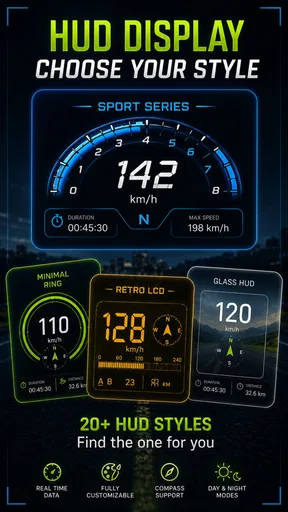
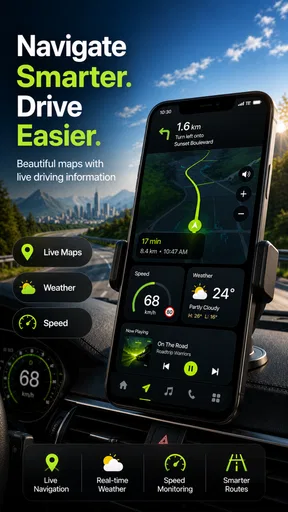
Our Review of Car Play Auto Link for Android
 Analysis by Appyee
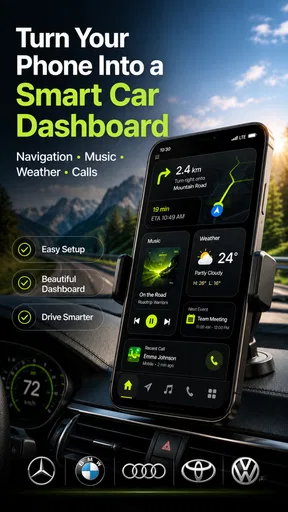
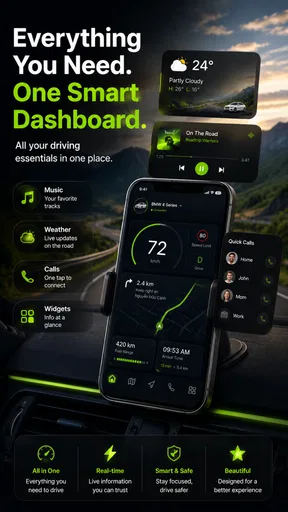
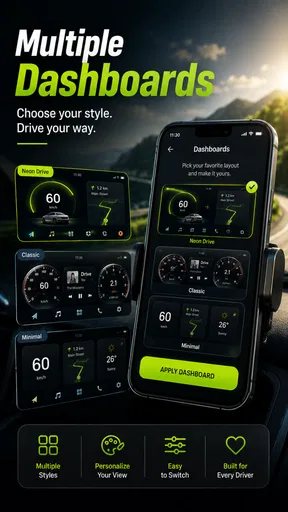
I spent time with Car Play Auto Link as a practical driving companion rather than treating it like a simple phone-mirroring utility. It is an Android app from DUCSTUDIO in the Auto & Vehicles category, built around a smart dashboard that brings navigation, music, weather, and a parked-car finder into the same driving routine. The idea is straightforward, but the usefulness depends heavily on how consistently you prepare it before moving.
My first impression was that this is best understood as a single driving workspace, not a replacement for every app on your phone. Instead of jumping between separate navigation, audio, weather, and memory tools, you can use one central experience for the tasks you are most likely to need on the road. That makes it appealing for people who want less visual clutter while driving, especially when their car setup does not already offer a satisfying built-in interface.
The app is free to install and suitable for Everyone, while optional in-app purchases range from $3.99 to $54.99 per item. That pricing detail matters because the free starting point makes it easy to test the dashboard with your own phone and vehicle before deciding whether the extra paid options fit your habits. I would not pay immediately. I would first check how comfortably it works with my car, how quickly I can reach the functions I use, and whether the display feels natural from the driver’s seat.
Building a dependable driving routine
I’d make the routine easy to repeat rather than relying on memory: decide what you’ll check before departure, what you’ll leave alone while driving, and what you’ll do as soon as you park. That distinction helps the dashboard stay a support tool instead of another source of distraction. In the next section, I’ll look at the small setup checks that can make that routine more dependable.
The baseline workflow I would use every day
My preferred routine begins before the car moves. I open the dashboard while parked, confirm that the navigation destination is correct, choose the music or audio I want, and glance at the weather information that could affect the trip. This small preparation step is more important than it sounds. A dashboard app is most useful when it reduces decisions during the journey, not when it becomes another screen to configure at traffic lights.
For a normal commute, I would keep the sequence almost identical: connect the phone to the car setup, open Car Play Auto Link, check the route, select audio, and then leave the phone alone. Repeating the same order creates a habit that is safer and faster than searching through several unrelated apps. The app’s value comes from that repeatable flow more than from any single feature.
Navigation is the obvious starting point, but I found the surrounding tools just as relevant. Weather is useful before leaving for an early appointment or a longer drive, while the parked-car finder has a different purpose: it helps after the journey, when remembering the exact location is harder than following the route there. Keeping those functions together gives the dashboard a beginning-to-end role instead of limiting it to directions.
A realistic example is a shopping trip to an unfamiliar retail area. Before leaving home, I would set the destination, check whether the weather suggests carrying a coat or allowing extra time, and start music at a comfortable volume. After parking, I would use the parked-car feature immediately rather than trusting my memory. When I return later, that one habit can save more time than any fancy dashboard animation.
Why the combined layout is more useful than isolated tools
On a phone, navigation, music, weather, and parking notes often live in different places. Each individual app may be stronger in its own specialty, but switching between them creates friction. Car Play Auto Link makes a different trade-off: it prioritizes a coherent driving surface over deep specialization. I would choose it when I want the essentials close together, not when I need the most advanced mapping, audio library management, or weather analysis available.
That distinction helps set expectations. Someone who already enjoys a polished factory infotainment system may find the app unnecessary. The stronger case is for a driver whose car experience feels fragmented, or for someone who wants a familiar phone-based dashboard instead of learning several menus. It can also be useful when the driver shares a vehicle and wants a simple routine that is easy to explain to another person.
I would still prepare everything while parked. Even a well-organized dashboard cannot remove the distraction of making route changes, browsing music, or searching for information while driving. The app can reduce the number of steps, but it cannot turn complicated interaction into safe interaction. My rule would be simple: configure before departure, use only the essential controls on the road, and pull over for anything that requires attention.
The parked-car feature deserves a deliberate habit
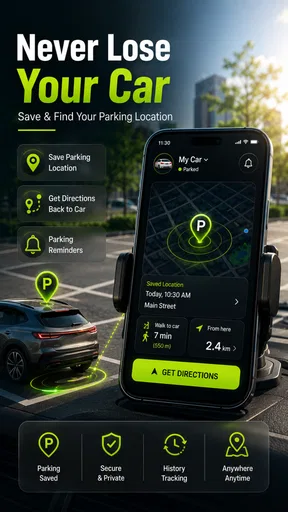
The parked-car finder is easy to overlook because it is not part of the active driving journey. In practice, it may become one of the most useful functions for people who regularly visit large car parks, unfamiliar streets, event venues, or busy shopping districts. Its usefulness depends on using it at the right moment. I would activate or save the parking location immediately after leaving the car, while the surroundings are still clear in my mind.
This is also where realistic expectations matter. A saved parking position is not the same as a complete guide through a multi-level garage or a guarantee that the car will be visible from the final walking direction. I would treat it as a memory aid, then use nearby signs, floor markings, and landmarks as a second layer. That combination is more reliable than depending on a single digital marker.
Checking the weather before the route, not during it
The weather panel makes most sense as a departure check. I would use it to decide whether to delay a trip, bring suitable clothing, or allow more time for conditions that may slow traffic. It is less useful as a reason to keep looking at the dashboard throughout the drive. Once I know what I need, I would close that mental loop and focus on the road.
This is a small but important workflow improvement: use each part of the app at the moment when it has the greatest value. Navigation belongs before and during the trip, music is mainly a background choice, weather is usually a pre-departure decision, and the parked-car finder matters after arrival. Treating every panel as something to monitor continuously would make the dashboard feel busier than it needs to be.
Settings I would check before relying on it
My first settings check would be display behavior. A driving dashboard should be readable at a glance, with controls that do not require careful tapping. I would test it in daylight and at night while parked, because a layout that looks comfortable indoors may feel too bright or too dense in a moving vehicle. I would also check whether the phone stays positioned securely and within easy reach without blocking the driver’s view.
Next, I would review the connection process that my car requires. Car Play Auto Link is designed around linking the phone with a car-oriented experience, but the exact result can depend on the vehicle, the phone, and the connection method available in that setup. I would test the complete start-up sequence several times before a long trip. If it takes too many manual steps each morning, the dashboard may become more annoying than the separate tools it was meant to simplify.
I would also check the app’s behavior after interruptions. A call, a short stop, a phone lock, or a temporary connection problem can change the flow of a driving session. The practical question is not whether interruptions ever happen; they do. The question is whether I can return to navigation and audio without searching through unrelated screens. Testing that while parked gives a much clearer answer than discovering it halfway through an unfamiliar route.
Music deserves its own check. I would choose the audio source and volume before leaving, then keep the selection simple. The dashboard is not where I would spend time organizing a large library or comparing tracks. If my priority were detailed playlist control, podcast discovery, or sophisticated audio management, I would probably prefer the dedicated service I already know. Here, convenience is the benefit, and depth is the trade-off.
Because the app includes optional purchases, I would explore the free experience first and pay only when I understand what additional value I am receiving. The cost range is wide enough that casually tapping through purchase screens would be a poor approach. I would compare the paid option with my actual driving frequency: a daily commuter may value a smoother routine more than an occasional driver, while someone who only needs directions a few times a month may not need to spend anything.
Small setup choices that improve repeat use
I would place the app where it can be opened without searching, but I would avoid turning the phone into a permanent distraction. A home-screen shortcut or an easy-to-reach app position can shorten preparation time, yet the phone should still be mounted securely and configured before the vehicle moves. The shortcut is useful because it supports a habit; it is not an invitation to operate the phone while driving.
I would also decide in advance what my default driving screen should contain. If the dashboard presents several functions, I would keep navigation as the main task and treat music, weather, and parking as supporting tools. This prevents the common mistake of trying to make every available panel equally prominent. The best setup is the one that answers the next driving question quickly: where am I going, what do I need to hear, and what should I remember after parking?
Faster patterns for regular drivers
Experienced use is mostly about removing repeated decisions. For a commute, I would use a fixed preparation checklist: mount the phone, connect the car, set the route, select audio, and start. For errands, I would add the parking step at arrival. For longer journeys, I would check weather and route conditions before departure and avoid changing the plan casually once underway.
Another useful pattern is to separate “before driving” actions from “after parking” actions. Navigation and music can be prepared together, while the parked-car finder should be used at the destination. This keeps the dashboard from becoming a constant task list. It also means I am less likely to forget the parking location because I have attached it to a clear event: leaving the vehicle.
When driving with passengers, I would let the passenger handle route changes or audio choices rather than reaching for the screen myself. This is not a special feature of the app, but it is a better way to use any dashboard. Car Play Auto Link helps by putting common controls in one place, yet good habits still determine whether that convenience improves the trip or creates more interaction.
I would keep a backup plan for situations where the connection or dashboard does not start as expected. Before an important drive, I would make sure I know how to access the phone’s normal navigation and audio tools while parked. That may sound like a criticism, but it is actually a sign of mature use: a dashboard app should support the trip, not become the only thing standing between the driver and basic directions.
Where it is stronger than the usual alternatives
Compared with using separate phone apps, Car Play Auto Link has a clear organizational advantage. The driving session feels more intentional because the main tasks are grouped together. I would recommend it to someone who currently unlocks the phone, searches for navigation, switches to music, checks weather elsewhere, and then tries to remember where the car was parked. The app can turn that scattered routine into a sequence that is easier to repeat.
Compared with a manufacturer’s built-in infotainment system, the choice is less obvious. Factory systems may integrate more deeply with the vehicle and can feel more stable for drivers who already like them. Car Play Auto Link is more attractive when the built-in system is limited, awkward, or unavailable for the phone setup being used. The decision should be based on daily friction, not on the number of functions listed on a screen.
Compared with a dedicated parking-memory app, the parked-car function may be more convenient because it sits inside the same dashboard used for the trip. The trade-off is specialization. If parking is the only problem I need to solve, a focused alternative might offer a simpler experience. If I want parking memory as one part of a complete driving routine, keeping it alongside navigation and music is more sensible.
Compared with a standalone weather app, the weather information here is valuable because it appears in a driving context. I would not use it for detailed forecasts or planning an entire week. I would use it for the immediate question of whether today’s trip calls for different clothing, timing, or caution. That narrower role is enough for many journeys, but not for users who need meteorological depth.
Limits that become clearer with advanced use
The biggest limitation is that convenience can be mistaken for complete integration. Bringing several driving tasks together does not automatically mean every vehicle, phone, or connection will behave identically. I would judge the app after testing it in my own car, with the exact mounting position and connection routine I plan to use. A dashboard that works well in one setup may feel less seamless in another.
The second limitation is depth. The app’s appeal comes from combining essentials, so people who want highly specialized navigation controls, extensive audio discovery, or detailed weather tools may eventually return to dedicated alternatives. That is not a failure; it is the central trade-off. Car Play Auto Link is about reducing switching, not winning every category on its own.
The third limitation is that the parked-car feature depends on user discipline. Forgetting to save the location means there may be nothing useful to retrieve later. I would make it part of the exit routine, just like checking that the doors are locked. This is one of the app’s less obvious lessons: a helpful feature can still fail if it is not attached to a repeatable moment.
I would also be cautious about paying for features before identifying the exact problem I want to solve. The free entry point is useful for learning whether the dashboard fits my routine. If the app already handles my normal trips comfortably, an optional purchase may be worthwhile for convenience. If the basic workflow feels awkward, spending more is unlikely to fix the underlying mismatch between the app and my vehicle setup.
Who should use it and who should skip it
I think Car Play Auto Link is a good fit for Android users who want a clean, combined dashboard for ordinary driving. It is especially suitable for commuters, people who frequently park in unfamiliar places, and drivers whose current routine involves too much switching between navigation, music, weather, and parking tools. It also makes sense for someone who wants to test a phone-based car dashboard without paying at the starting line.
I would skip it if my car already provides an excellent integrated system that I trust and enjoy using. I would also look elsewhere if my main need is advanced navigation, serious audio management, or detailed weather planning. Drivers who dislike preparing the route and media before departure may find the app less satisfying, because its advantages appear when the workflow is organized rather than improvised.
For new users, I would spend a few short parked sessions learning the routine instead of judging it after a single hurried launch. Test the connection, check the display, set a route, try the audio controls, look at the weather panel, and practice saving a parking location. That process reveals the important question: does the app make my real driving sequence calmer and more predictable?
My verdict after making it part of the routine
Car Play Auto Link works best when I treat it as a disciplined dashboard rather than an entertainment screen. Its strongest quality is the way it groups common driving needs into one place: navigation for the journey, music for the background, weather for preparation, and parking memory for the return. The result is practical, especially for drivers who want fewer app changes and a repeatable start-to-finish routine.
It is not the right choice for everyone. A strong factory system or a collection of specialized apps may be better for users who prioritize deep integration or advanced controls. The connection and vehicle experience should be tested personally, and optional purchases should be considered only after the free workflow proves useful. Those are meaningful qualifications, but they do not erase the app’s central convenience.
The current version is 1.13, and it runs on Android 8.0 or later. With over 10 thousand installs, it has found an audience without feeling like a tool I would recommend blindly to every driver. My recommendation is more specific: try it if your current car routine feels scattered, use the settings to make preparation consistent, and build the parked-car step into your arrival habit. For me, the best reason to use it is not that it does everything, but that it makes the few things I repeatedly need easier to organize.
After using it in that way, I see Car Play Auto Link as a sensible free starting point for Android drivers who want a simpler car dashboard. It earns its place when it reduces daily friction without asking me to constantly interact with the screen. Used with preparation and realistic expectations, it can make ordinary trips feel more orderly; used as a substitute for every specialized driving tool, it will probably feel limited.
Verdict
Strengths of Car Play Auto Link for Android
- Simple setup for compatible Android phones and car displays.
- Supports hands-free access to navigation, calls, and music.
- Can mirror selected phone functions on a larger screen.
- Useful alternative for cars without built-in Android Auto.
- Connection status and controls are generally easy to understand.
Limitations of Car Play Auto Link for Android
- Compatibility varies widely between phones, vehicles, and head units.
- Wireless connections may drop during longer drives.
- Some features require additional permissions to work properly.
- Screen mirroring can be limited by Android version or device model.
- The app may show ads or request upgrades for certain functions.
Similar Picks in This Category
View All
Android Auto
Google LLC4.1

maxim — order a taxi & food
PT. SITO4.7

Штрафы ГИБДД: проверка с фото
Pays LLC – Штрафы ГИБДД4.7

Номерограм – проверка авто
Авто Ассист4.8

Дром Авто
Дром4.9

Frequently Asked Questions
What is Car Play Auto Link for Android, and what does it do?
Car Play Auto Link for Android is designed to connect an Android phone with a compatible car display, allowing drivers to access selected phone features through the vehicle’s infotainment system. Depending on the car and phone, it may provide navigation, music playback, calls, messages, and other supported functions. Its exact features can vary because compatibility depends on the vehicle, Android version, USB or wireless connection, and the car’s built-in system.
Is Car Play Auto Link compatible with every Android phone and car?
No. Compatibility is not universal, so users should check both their vehicle and smartphone before downloading or relying on the app. Some cars require a specific USB port, a compatible infotainment unit, or wireless support, while certain phones may need updated Android software, Bluetooth, Wi-Fi, or USB permissions. If the vehicle does not support the required connection standard, the app may install successfully but still fail to display or control phone content.
How do I connect my Android phone to my car using Car Play Auto Link?
First, park the vehicle safely and make sure the car’s display system is switched on. Enable Bluetooth, Wi-Fi, and any requested permissions on the phone, then connect through the appropriate USB cable or wireless pairing option. Follow the prompts shown on both screens and approve access to contacts, notifications, calls, or media if required. If connection fails, try an original or high-quality cable, restart both devices, and remove older Bluetooth pairings.
What features can I use after connecting Car Play Auto Link?
The available functions depend on the car’s display, the phone model, and the app’s supported integration. In general, users may be able to control navigation, music, phone calls, contacts, and selected notifications from the vehicle screen. Voice controls may also be available through the phone or car system. Not every Android application will appear, and some features can be restricted while driving to reduce distraction and comply with the vehicle’s safety design.
Is Car Play Auto Link safe to use, and what permissions does it require?
The app can be useful for hands-free access, but it should always be used responsibly. It may request permissions for Bluetooth, nearby devices, location, contacts, phone calls, notifications, storage, or microphone access, depending on the connection method and features enabled. Review these requests before accepting them and install the app only from a trusted source. Always configure destinations and playlists before driving, keep your attention on the road, and follow local traffic regulations.
